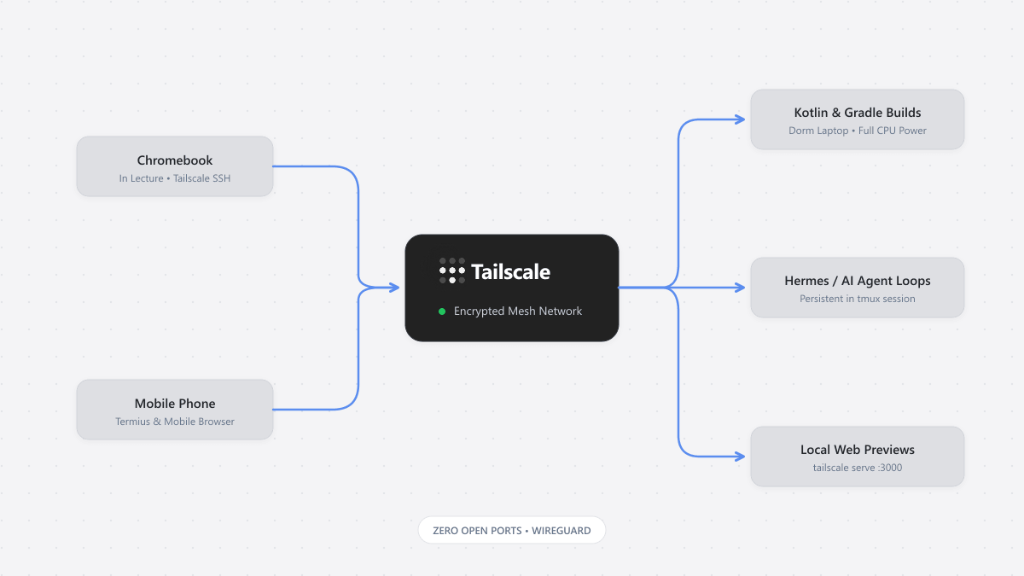
Right now I'm in college, and the only computer I bring to class is a lightweight Chromebook. It has barely enough RAM to keep 5 browser tabs open without stuttering.
Meanwhile, my main laptop sits plugged in back in my dorm room. It has all the RAM, my local git repositories, Gradle caches, API keys, and environment variables.
Whenever I tried compiling heavy Kotlin projects, running local Gradle builds, or letting an AI coding agent run multi-step tool loops (like Hermes or browser-based computer use agents), the Chromebook would immediately choke.
A few months ago, a friend mentioned Tailscale. Setting it up took maybe five minutes, and it turned my cheap Chromebook into a terminal for my main machine from anywhere on campus.
Here’s the simple setup and what I learned.
Why Tailscale instead of traditional tunnels?
On campus Wi-Fi, you can't touch the router. There is no port forwarding, dynamic IPs change constantly, and tools like ngrok give you random public URLs that anyone on the internet could technically hit if they found the link.
Tailscale creates a secure, encrypted mesh network directly between my Chromebook and my laptop.
- My main laptop gets a stable, private IP (and a MagicDNS name like
dorm-laptop). - Zero open router ports.
- Only devices logged into my Tailscale account can communicate.
What I Actually Run Remotely
Having secure, fast access to my main laptop unlocked three things I could never do on a Chromebook:
1. Heavy Kotlin & Gradle Builds
If you've ever run ./gradlew build on a dual-core budget laptop, you know the fan sounds like a jet engine before the IDE crashes. Now I just write the code over SSH and let my main laptop's CPU handle the compilation in seconds.
2. Autonomous Agents (Hermes / CLI Agents)
I like testing agentic loops (like Hermes or Claude Code) where the agent reads files, edits diffs, and runs unit tests in a loop. Running this over Tailscale means I can kick off a task from a lecture hall, disconnect, and check back later.
3. Web UI / Computer Use Previews
When an agent spins up a local dev server on localhost:3000 or a browser automation dashboard, I can access it directly on my Chromebook via:
tailscale serve http://localhost:3000Now I open http://dorm-laptop.tailnet-name.ts.net on my Chromebook browser, and it routes securely through my private network.
The Step-by-Step Setup
Step 1: Install Tailscale with SSH enabled
On the main laptop (Linux / macOS / WSL):
sudo tailscale up --sshEnabling --ssh means Tailscale handles authentication automatically—no copying SSH public/private keys between devices.
On the Chromebook (via the Linux terminal):
ssh dorm-laptopStep 2: Use tmux so runs don't die
Campus Wi-Fi drops constantly when moving between classrooms. If your SSH connection drops, your running agent will die unless it's in a persistent terminal session.
Before starting any task, I open tmux:
tmux new -s devInside tmux, I run the agent or build:
# Example: kick off your agent
hermes
Whenever I pack up my Chromebook and close the lid, I just detach (Ctrl + b, then d). The agent keeps working on my laptop in my room.
When I get to the library, I reconnect:
tmux attach -t devStep 3: Connecting from your phone (Zero laptop needed)
While I usually use my Chromebook in lectures, the coolest part is that you don't even need a laptop at all. You can do this entirely from your phone.
Tailscale has official apps for iOS and Android:
- Turn on Tailscale on your phone (it acts as a private VPN).
- Open a mobile SSH app like Termius, JuiceSSH, or Prompt.
- Connect straight to
dorm-laptop.
Now, while walking to lunch or standing in line, I can open Termius, run tmux attach -t dev, and check:
- Did the Kotlin build pass?
- Is Hermes or the AI agent asking for approval to run a shell command?
- Did a test fail?
If you ran tailscale serve http://localhost:3000, you can even open your phone's regular browser (Chrome or Safari) and navigate to http://dorm-laptop.your-tailnet.ts.net to test your web app UI directly on a real mobile screen.
Things I Learned the Hard Way
1. Power settings will ruin your day
The first day I tried this, I got to class and couldn't connect. My main laptop had gone to sleep after 15 minutes of idle time.
- What worked: In OS power settings, set "Sleep when plugged in" to Never, and keep the laptop plugged into the wall charger before leaving the room.
2. Background agents consume real power
If you leave a heavy agent in an open-ended loop compiling Kotlin or running Docker containers, your laptop will run hot all day. Make sure you check on it and kill idle sessions when done:
# Clean up when finished
tmux kill-session -t dev
tailscale serve reset
Summary
For a college setup, this made my daily routine so much easier. I get to keep my main laptop safely plugged in at my desk, while still being able to check on builds or let an agent run tasks from my Chromebook or phone between lectures.